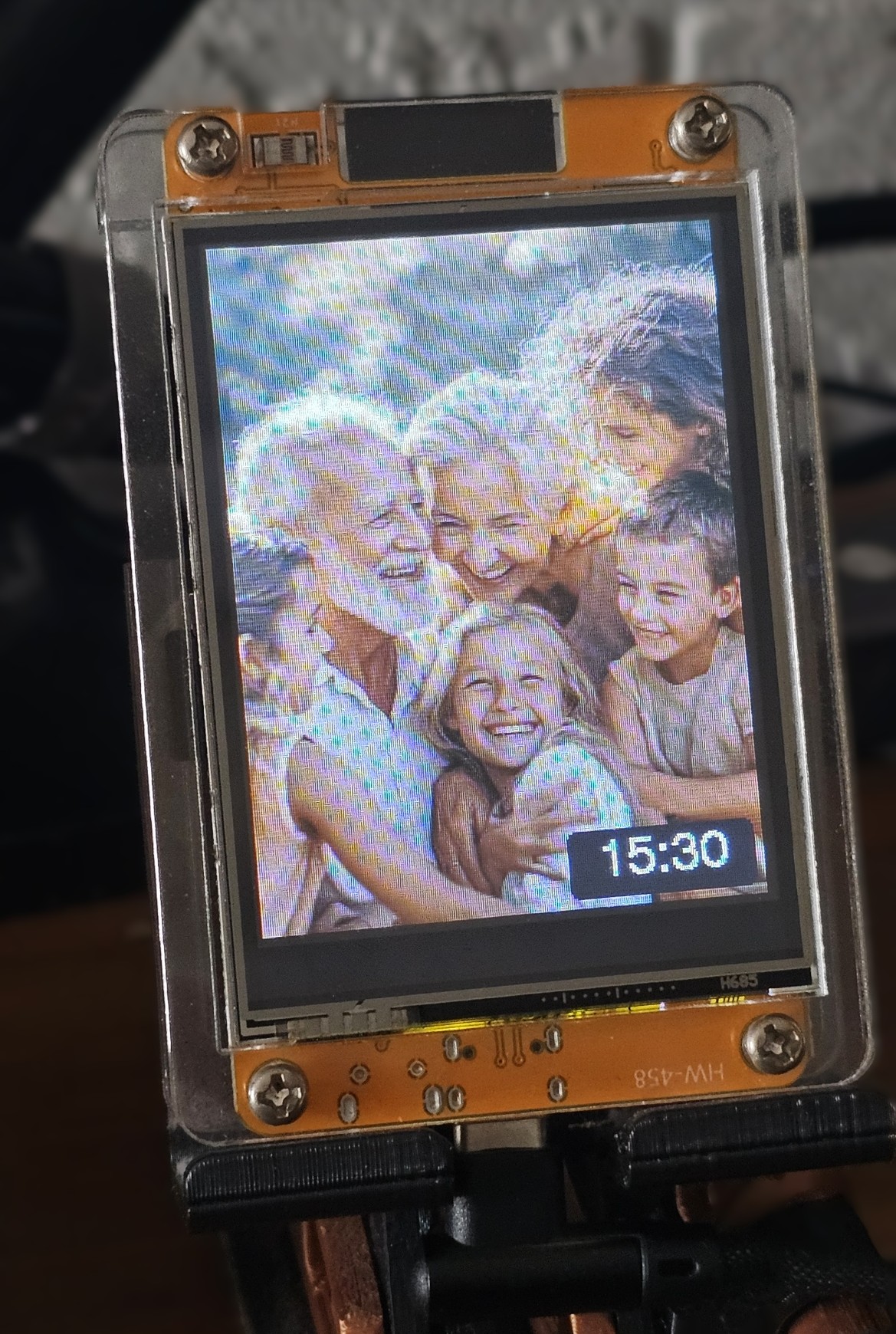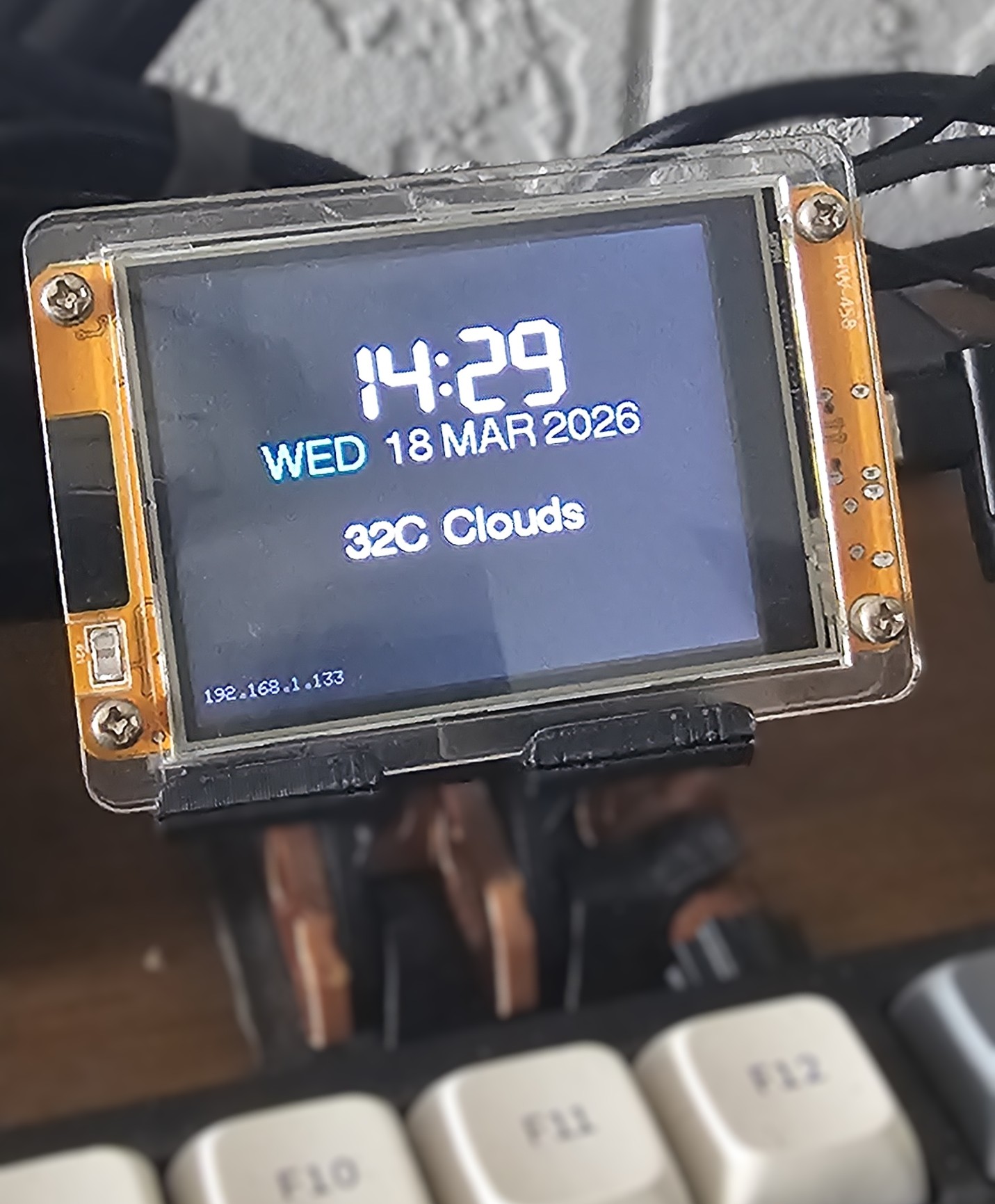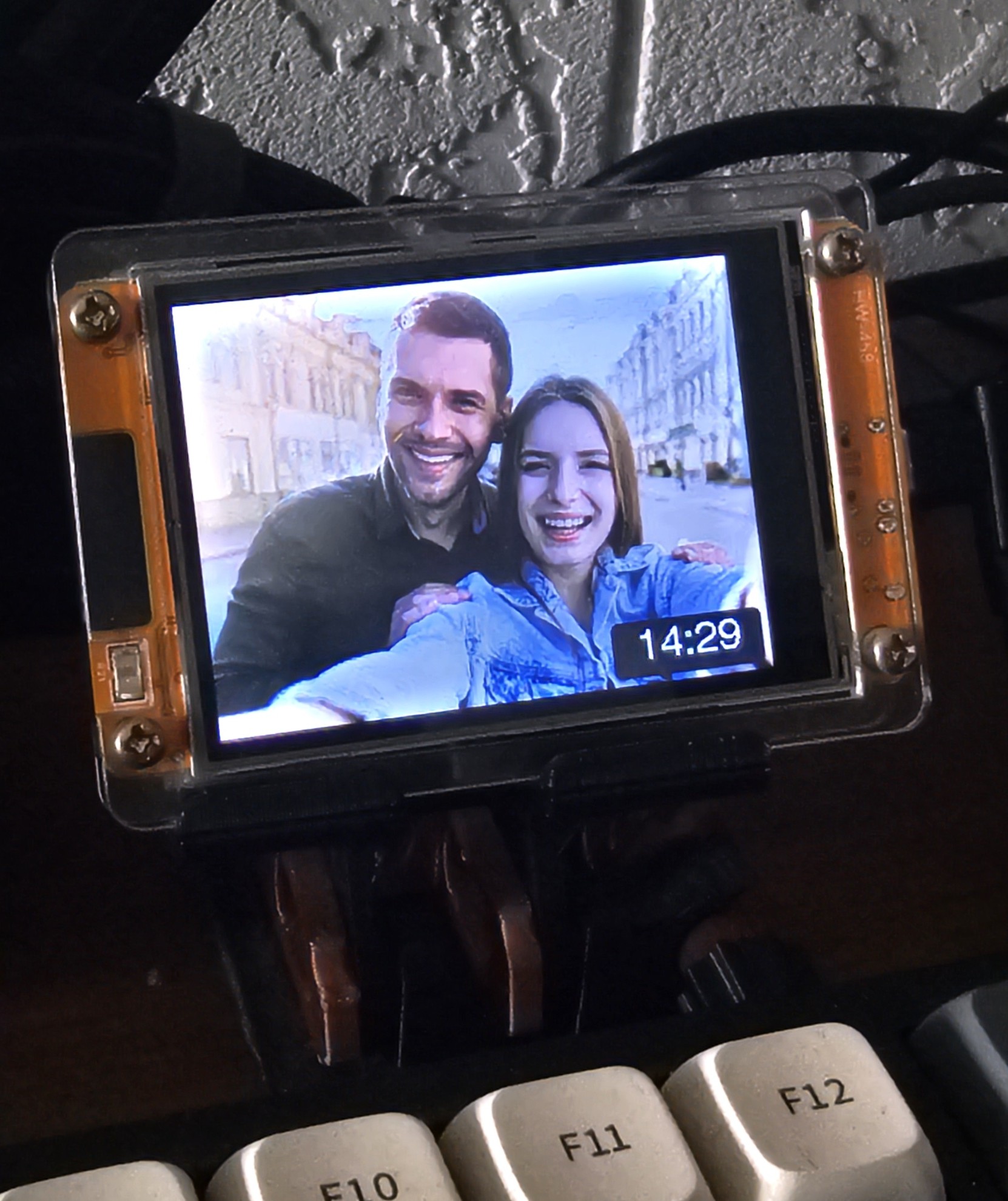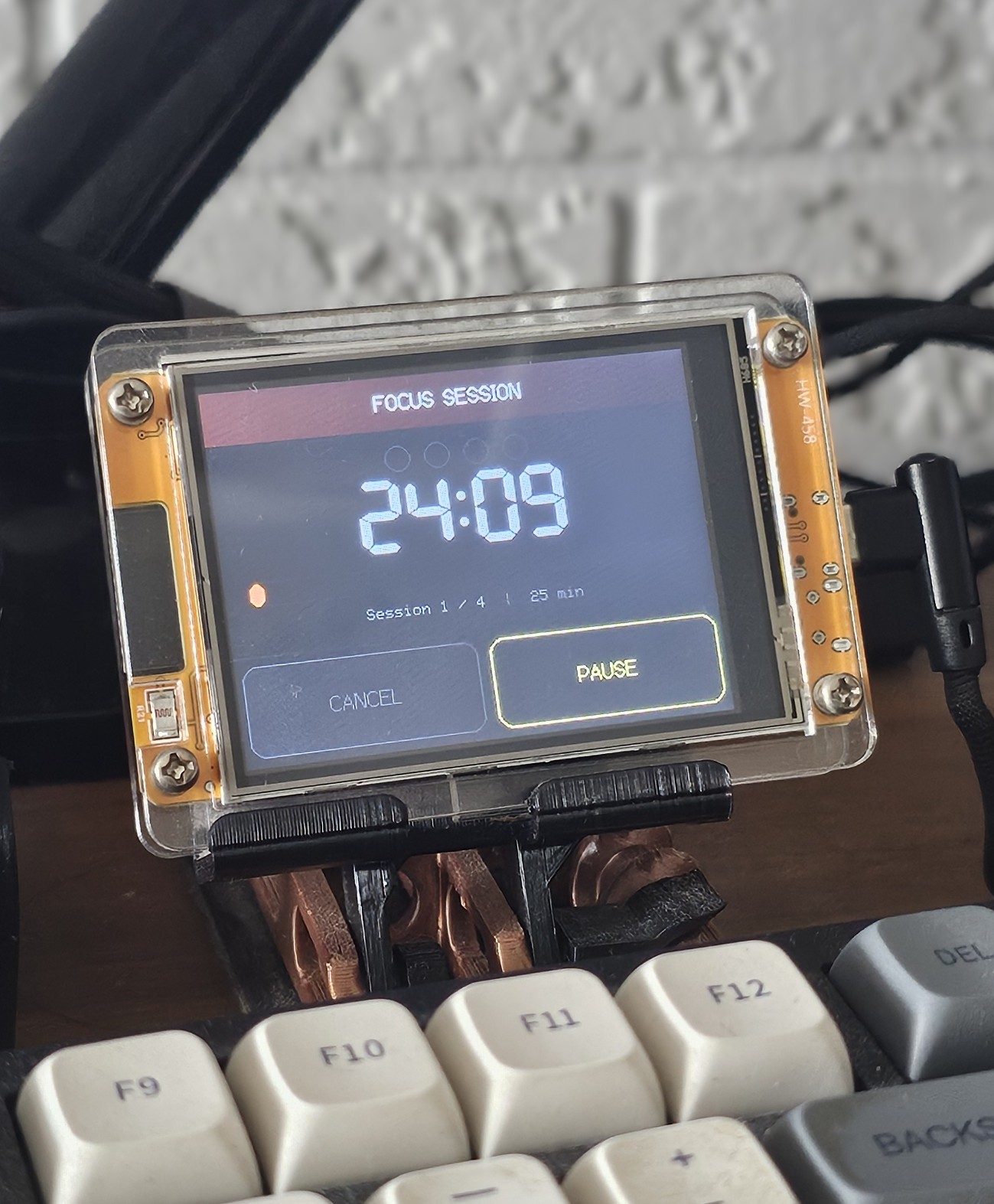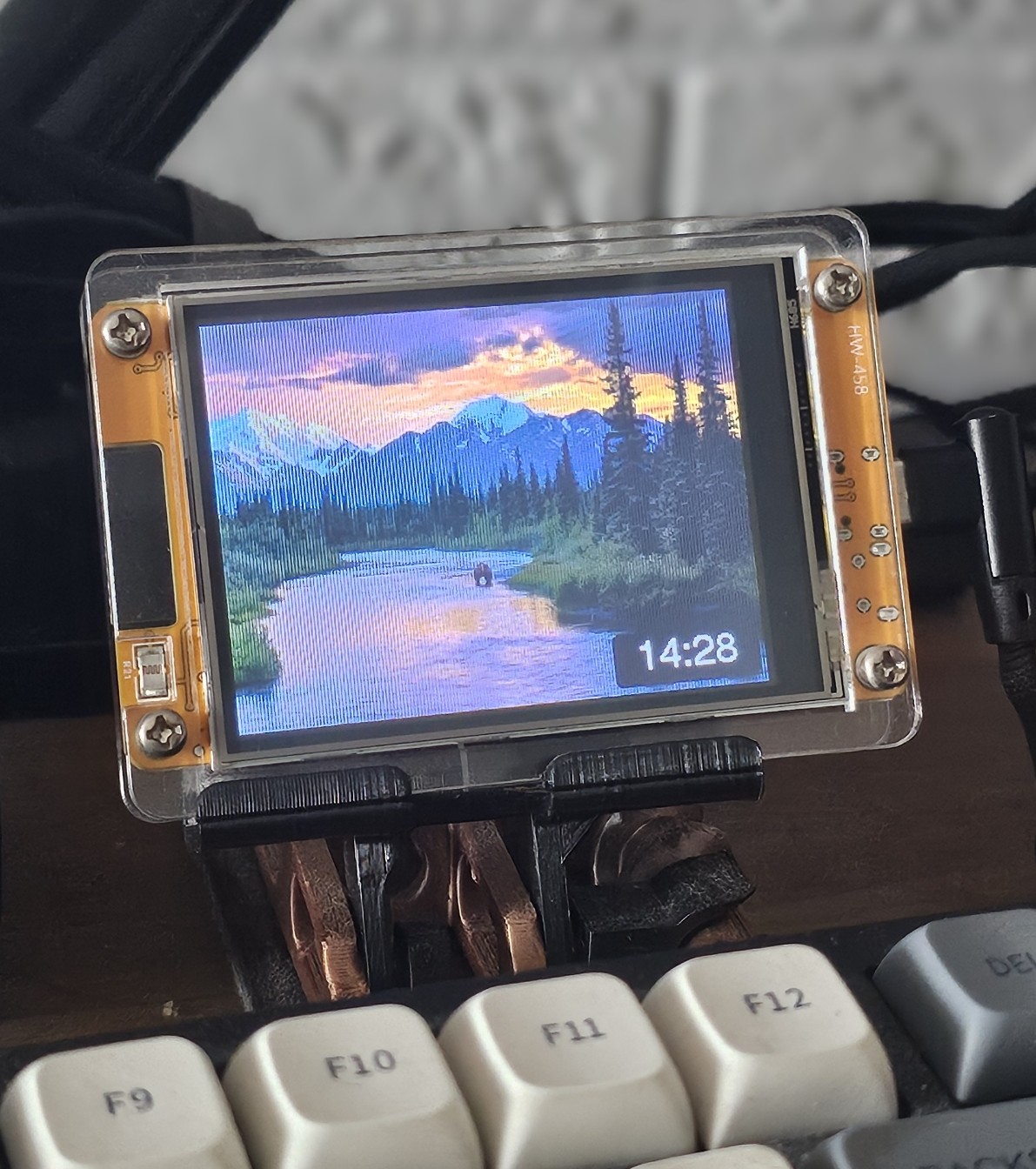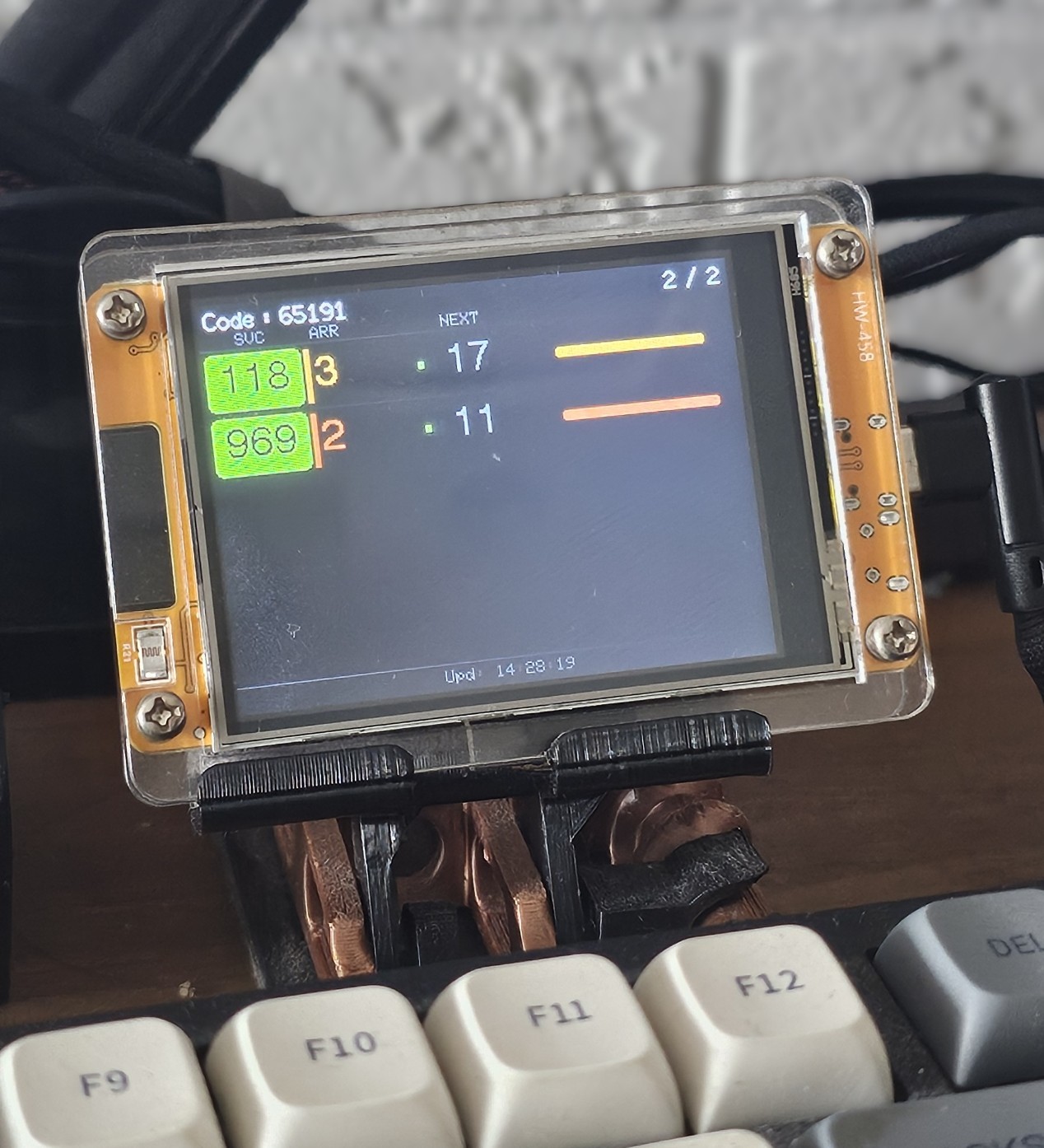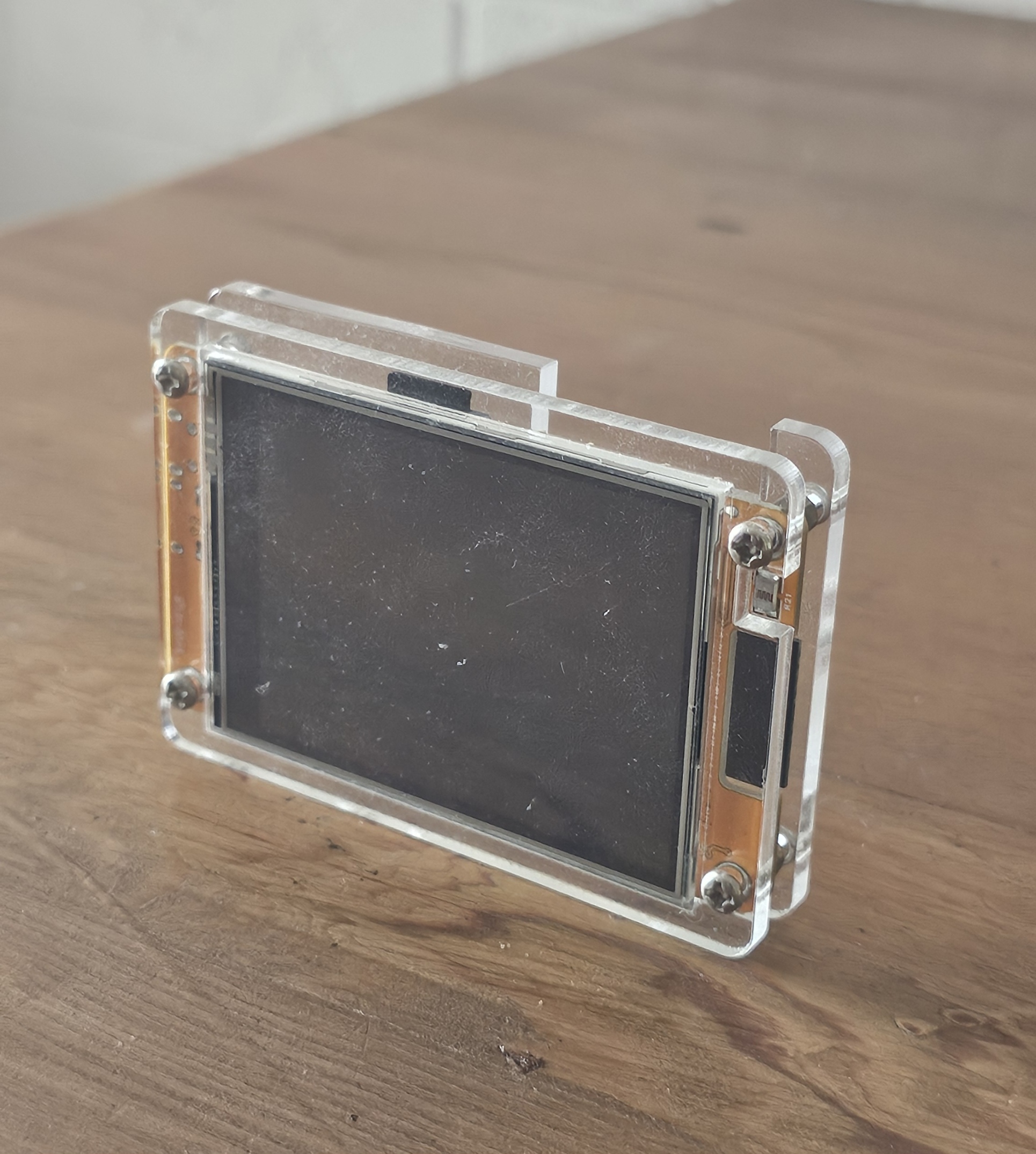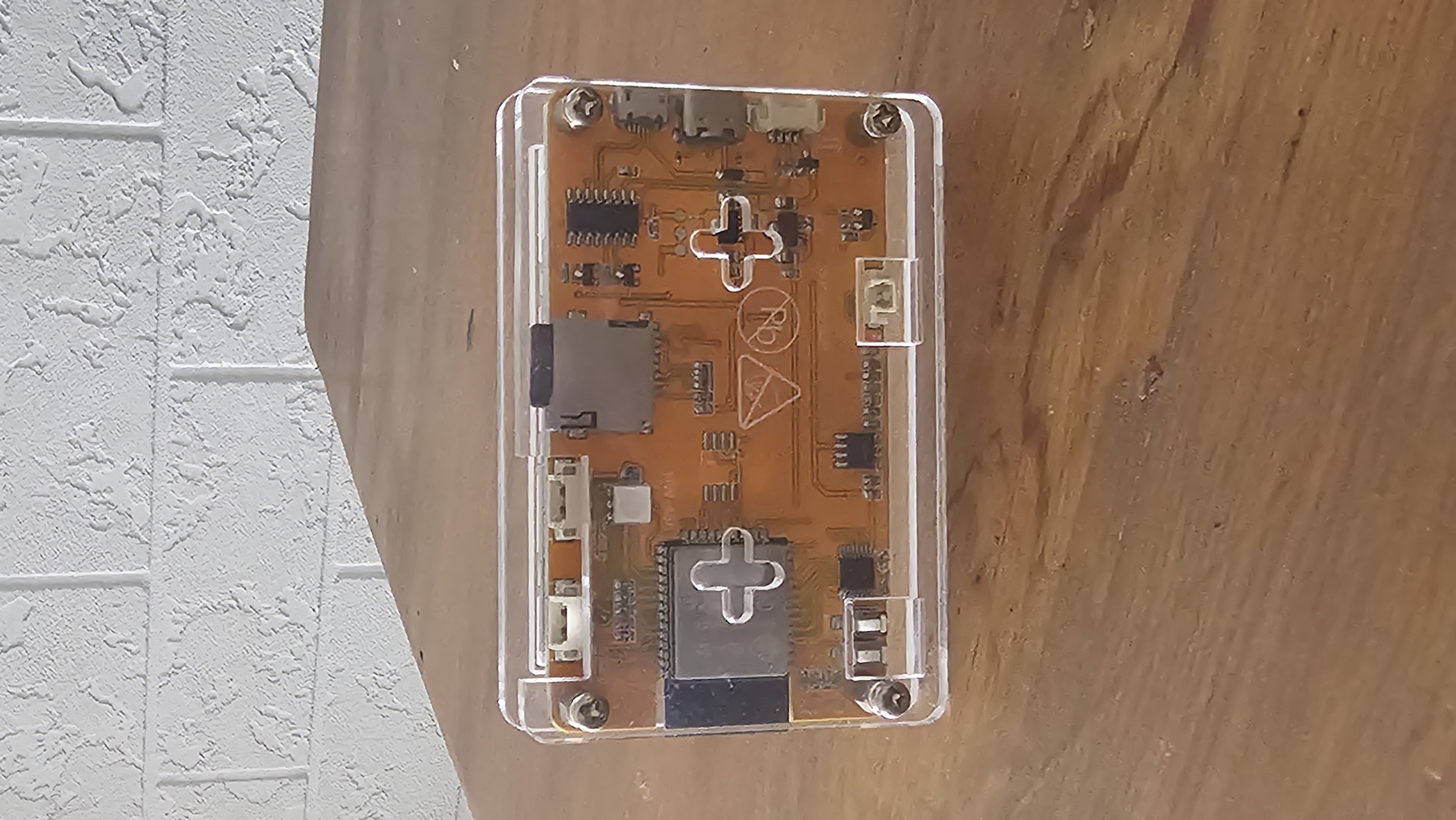
TinyDeck on a desk
Available Display Deck

TinyDeck

A compact always-on desk display that shows the time, weather, your photos, a focus timer, and live bus arrivals โ€” all from a single glanceable screen.

What is TinyDeck?

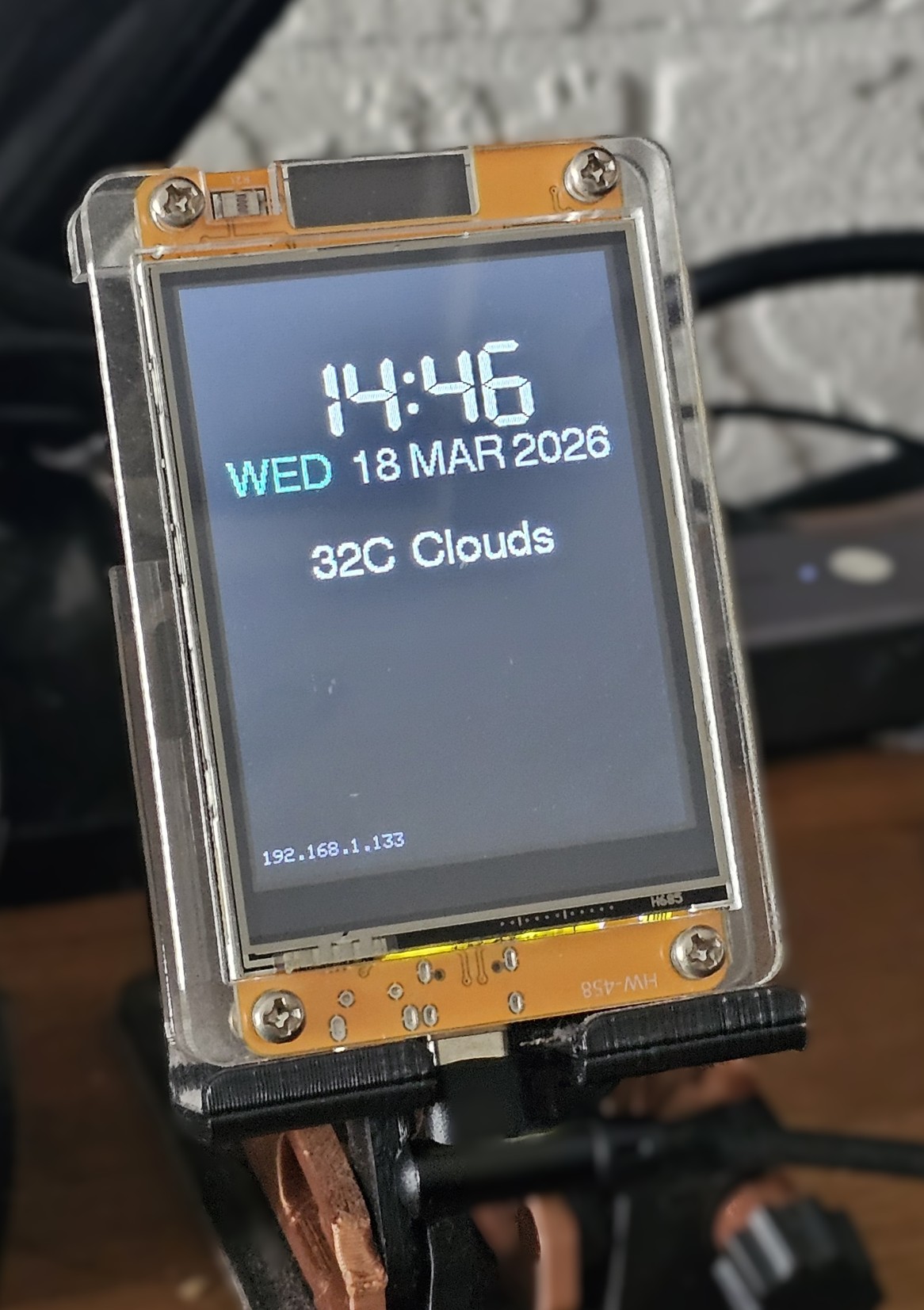
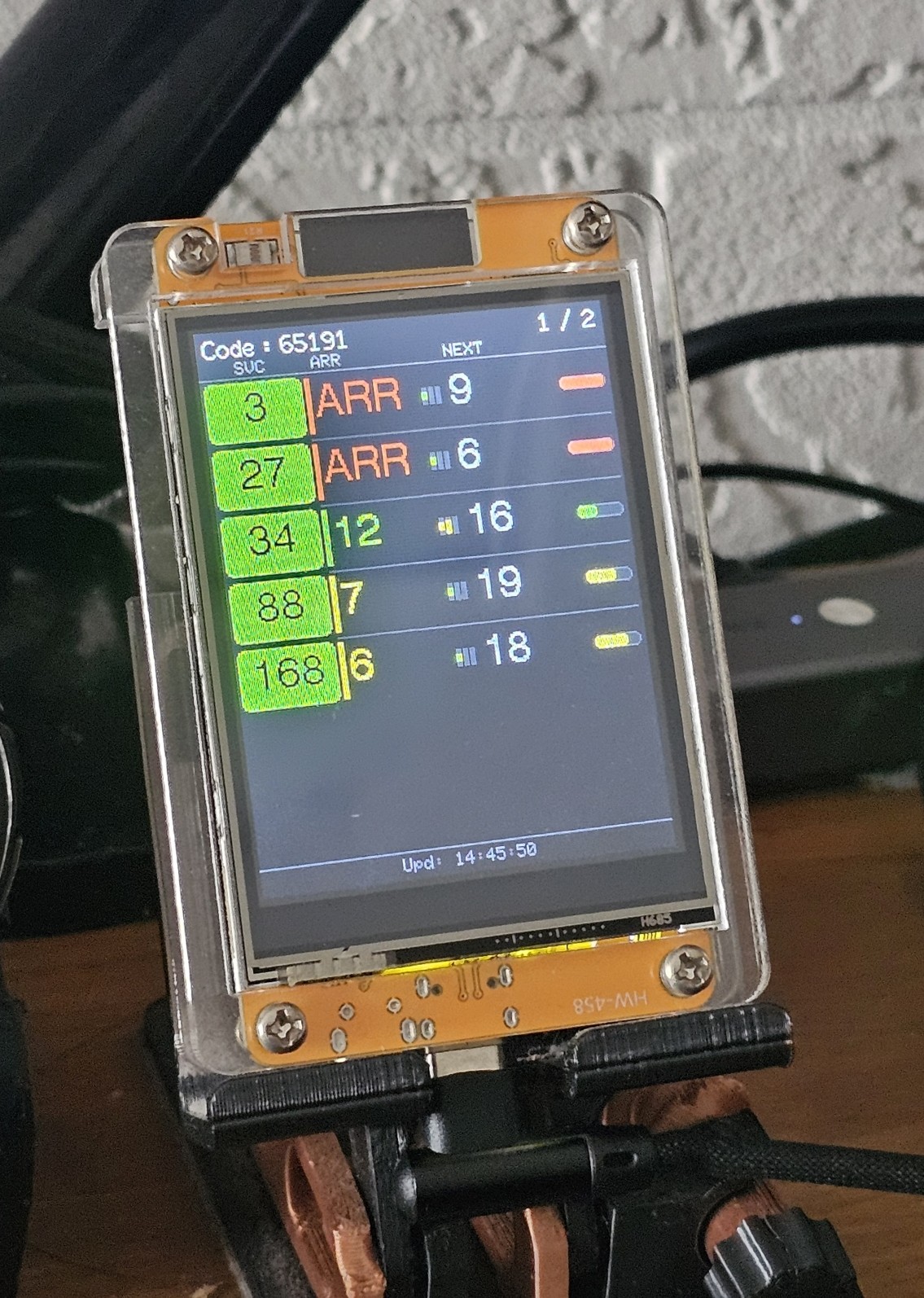
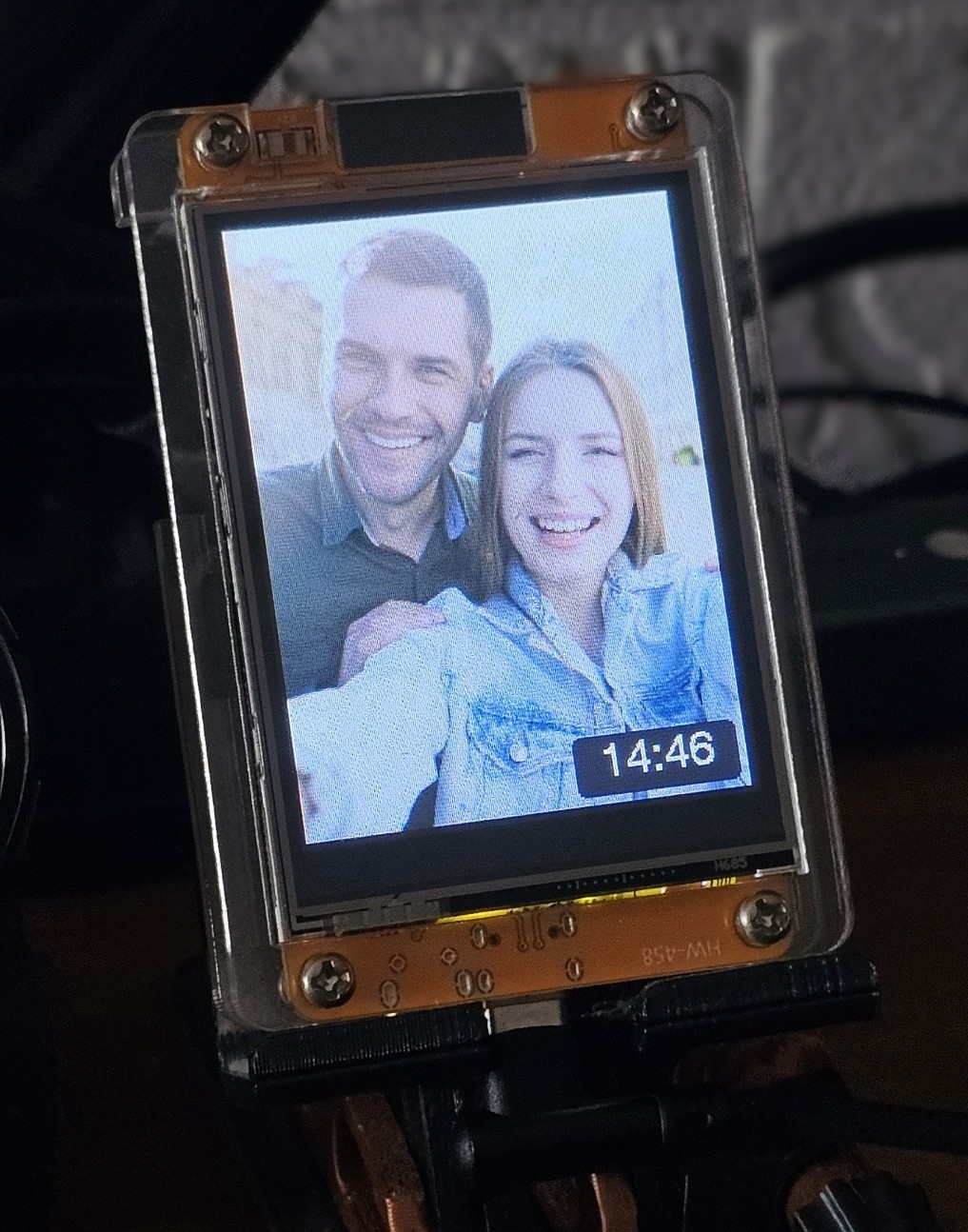
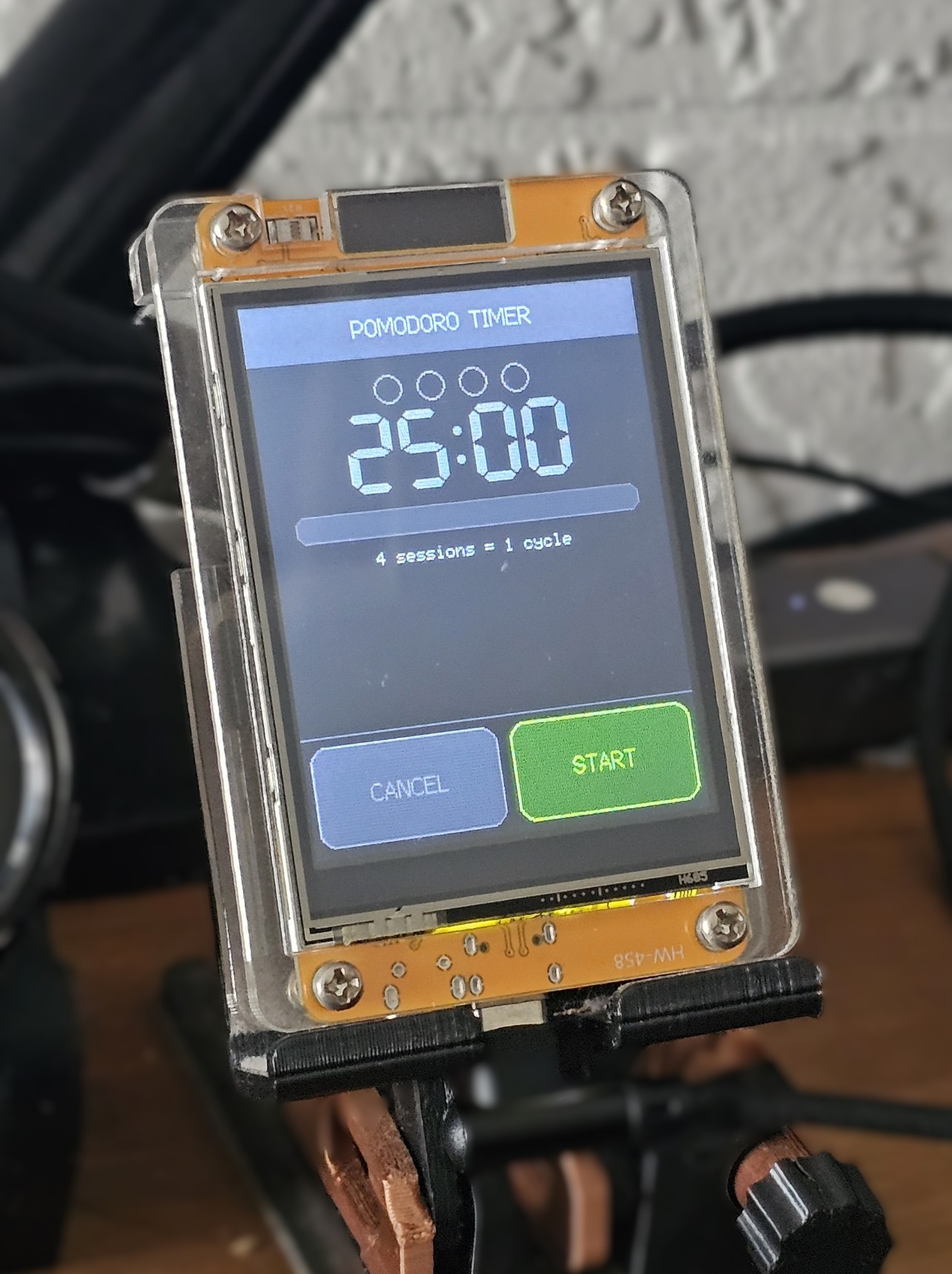
TinyDeck is a compact always-on desk display built around a vivid 2.8" TFT color touchscreen. Connected to your Wi-Fi, it surfaces the information you actually need throughout your day โ€” current time and weather, a rotating photo collection from your microSD card, a Pomodoro focus timer, and live bus arrival times for your configured stop so you can step out at exactly the right moment.

Everything is configured through a built-in web interface โ€” open it from any browser on the same network to set your location, bus stop, photo shuffle preferences, and active display hours for each widget. No app installs or technical knowledge required.

Features

  • Clock & weather โ€” always-on time and current conditions at a glance
  • Photo frame โ€” cycles through images on your microSD card with optional shuffle
  • Pomodoro timer โ€” structured focus sessions to keep you productive
  • Bus arrival โ€” live arrival times for your stop, shown automatically during your set hours
  • Wi-Fi connected โ€” pulls live data without any cables beyond USB power
  • Web configuration โ€” set up everything from a browser on the same network
  • Image Prep Tool โ€” crop and export photos at the exact 240 ร— 320 px display size

Specifications

Display2.8" TFT Color ยท 240 ร— 320 px
ConnectionUSB-C
CompatibilityWin / macOS / Linux
Image formatPNG / BMP
Dimensions85 ร— 60 ร— 15 mm
Weight66 g

What can it display?

Portrait

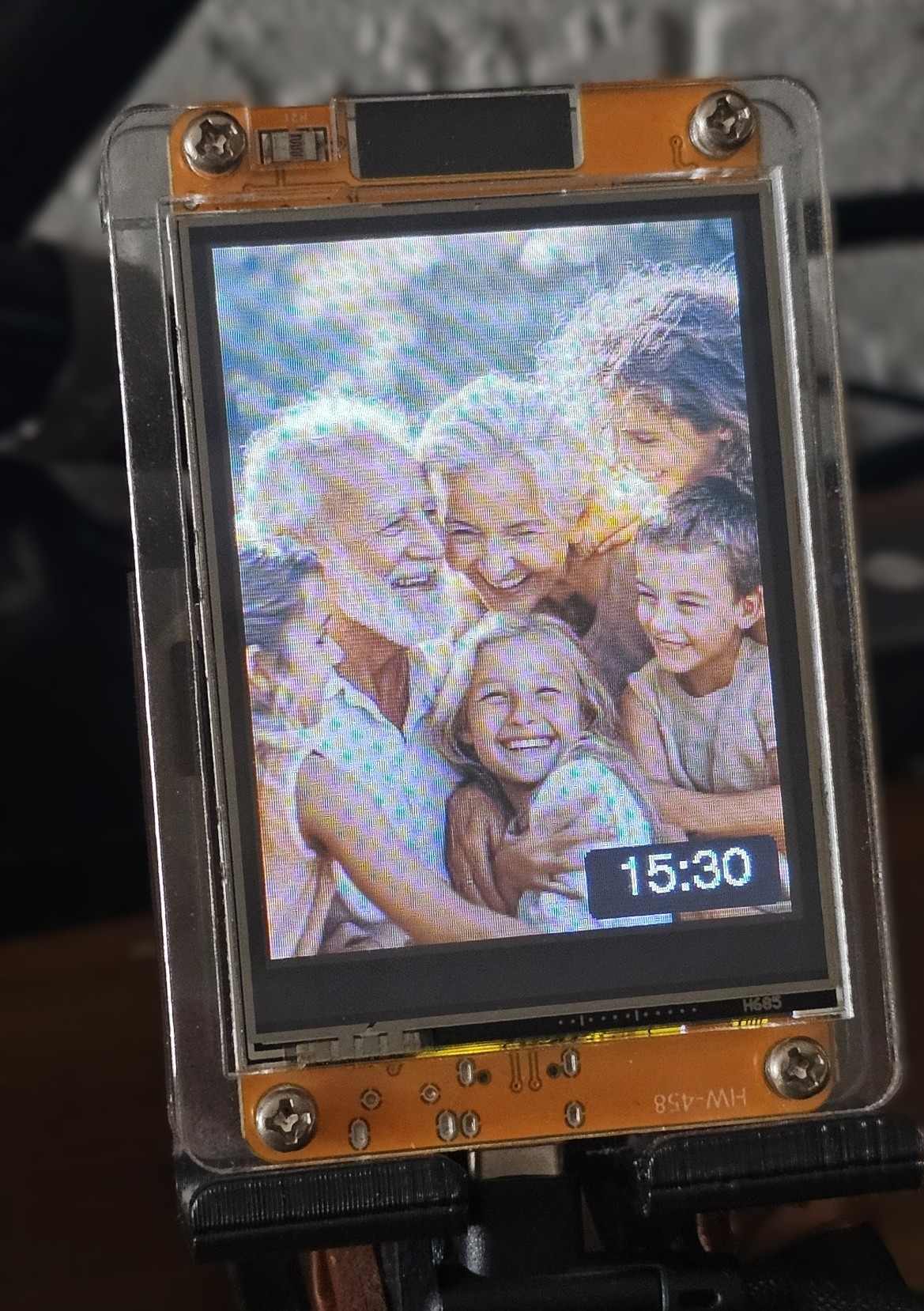
Portrait photo 1 on TinyDeck Photo 1
Portrait photo 2 on TinyDeck Photo 2
Portrait photo 3 on TinyDeck Photo 3
Portrait photo 4 on TinyDeck Photo 4
Portrait photo 5 on TinyDeck Photo 5

Landscape

Landscape photo 1 on TinyDeck Photo 1
Landscape photo 2 on TinyDeck Photo 2
Landscape photo 3 on TinyDeck Photo 3
Landscape photo 4 on TinyDeck Photo 4
Landscape photo 5 on TinyDeck Photo 5

The Device

TinyDeck front view Front
TinyDeck back view Back
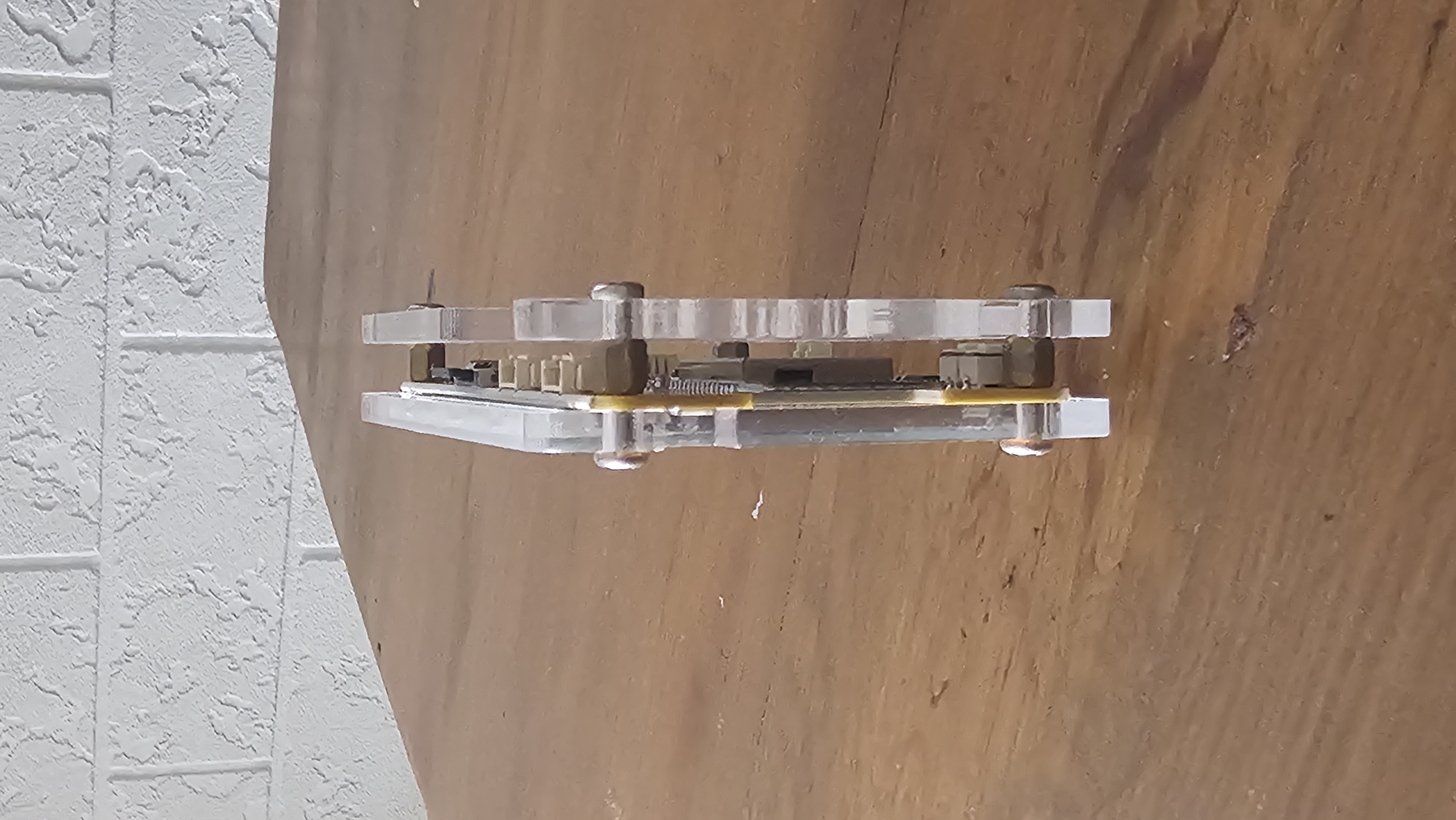
TinyDeck side view Side

Configuration

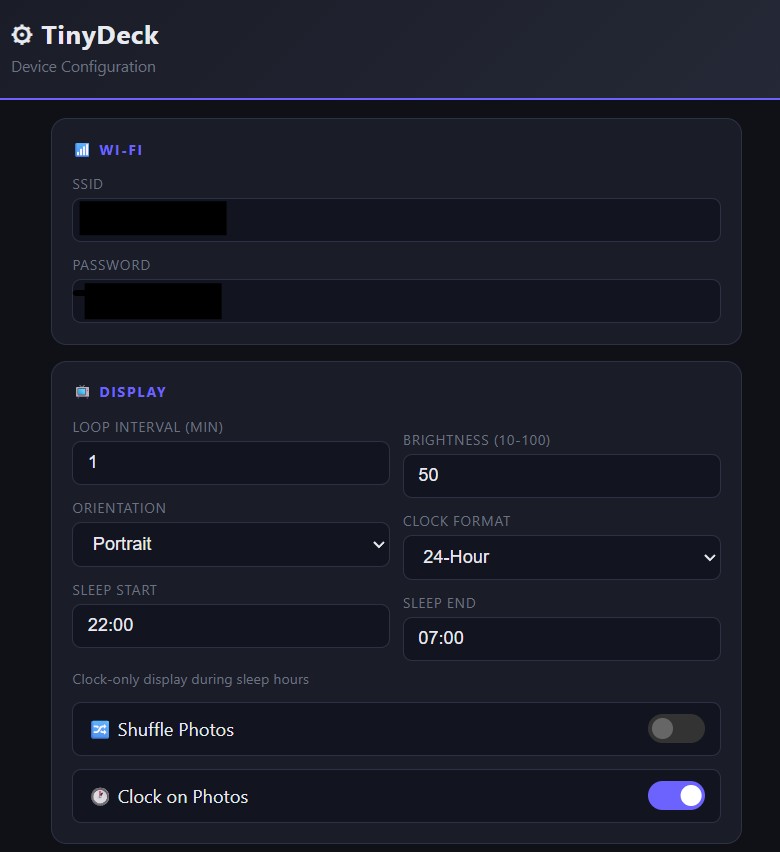
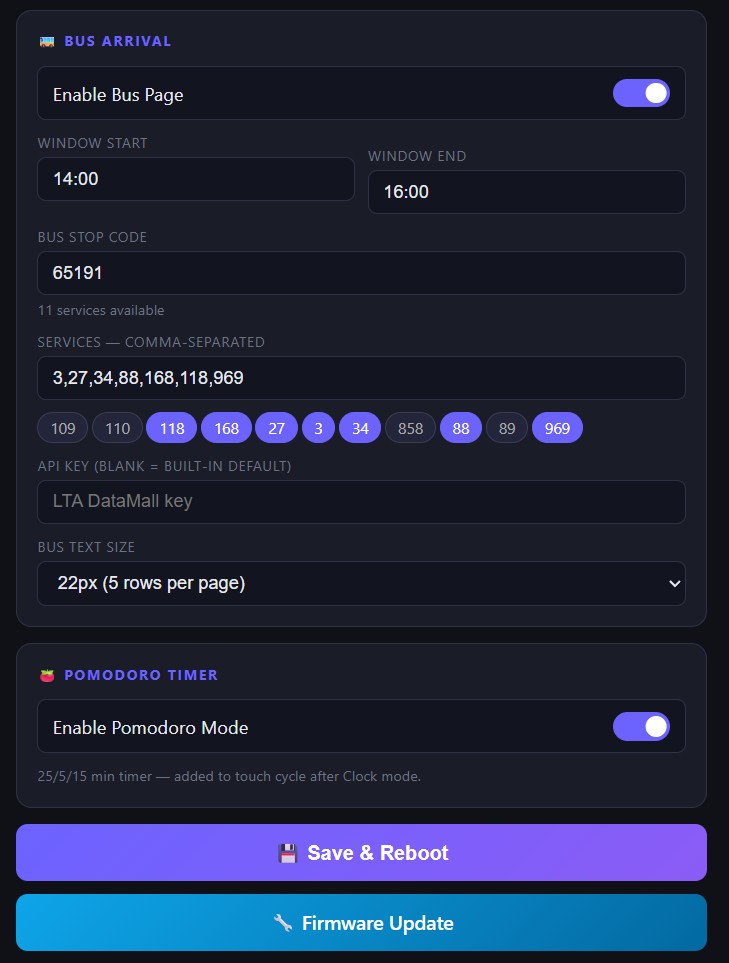
Set up everything from a browser โ€” no app install required.

TinyDeck configuration page 1 Page 1
TinyDeck configuration page 2 Page 2

Firmware Downloads

Download and flash the latest firmware to keep your TinyDeck up to date.

๐Ÿ“ฆ
TinyDeck Firmware v1.0.0 Latest
Released โ€” [Date placeholder]  ยท  [Size placeholder]
Download
How to update: Download the firmware file above, then open the TinyDeck configuration page in your browser and go to the Firmware Update section. Select the file and follow the on-screen instructions โ€” TinyDeck will apply the update and restart automatically.

Frequently Asked Questions

Can't find what you're looking for? Contact us.

How do I set up TinyDeck for the first time?
Plug TinyDeck into any USB power source using the USB-C cable. On first boot it will broadcast its own Wi-Fi hotspot โ€” connect to it from your phone or laptop, then enter your home Wi-Fi credentials. Once connected, TinyDeck will restart and join your network automatically on every subsequent boot.
How do I access the configuration page?
Make sure your phone or computer is on the same Wi-Fi network as TinyDeck. The device's IP address is shown on its screen โ€” type that address into any browser to open the configuration page. From there you can adjust all settings including your location, bus stop, photo preferences, and display schedules.
How do I add photos to the photo frame?
Copy your images onto a microSD card and insert it into TinyDeck. Images must be 240 ร— 320 px in PNG or BMP format โ€” use the Image Prep Tool tab on this page to crop and export any photo at the correct size. TinyDeck will cycle through all images on the card automatically, with an optional shuffle mode to vary the order.
How does the bus arrival feature work?
Enter your bus stop number in the configuration page. TinyDeck will fetch live arrival times and display them on screen so you can time your walk to the stop. You can also set an active time range โ€” for example, only show bus times during your morning and evening commute hours โ€” so the screen switches to another widget outside of those times.
How does the Pomodoro timer work?
Tap the screen to start a Pomodoro session. TinyDeck will count down a focused work interval followed by a short break, displaying the timer prominently on screen so you always know where you are in the cycle โ€” without reaching for your phone.
What image dimensions and formats does TinyDeck support?
The display is 240 ร— 320 pixels and accepts PNG and BMP files. Use the Image Prep Tool tab on this page to upload any photo, crop it to the right ratio, and download it ready to copy onto your microSD card.
How do I update the firmware?
Download the latest firmware file from the Firmware tab, then open the TinyDeck configuration page in your browser. Navigate to the Firmware Update section, select the downloaded file, and follow the on-screen instructions. TinyDeck will apply the update and restart automatically.
TinyDeck is not connecting to my Wi-Fi. What do I do?
Make sure you are connecting to a 2.4 GHz network โ€” TinyDeck does not support 5 GHz Wi-Fi. Double-check your password on the configuration page. If TinyDeck cannot reach the network it will rebroadcast its setup hotspot so you can re-enter your credentials. Still stuck? Contact us.

Image Prep Tool

Upload any image, crop it to the correct aspect ratio, and download it at the exact pixel dimensions required by TinyDeck.

Portrait
โš  Update dimensions to match your TinyDeck display spec.
๐Ÿ–ผ๏ธ

Drop an image here or click to upload

Supports JPG, PNG, GIF, BMP, WebP