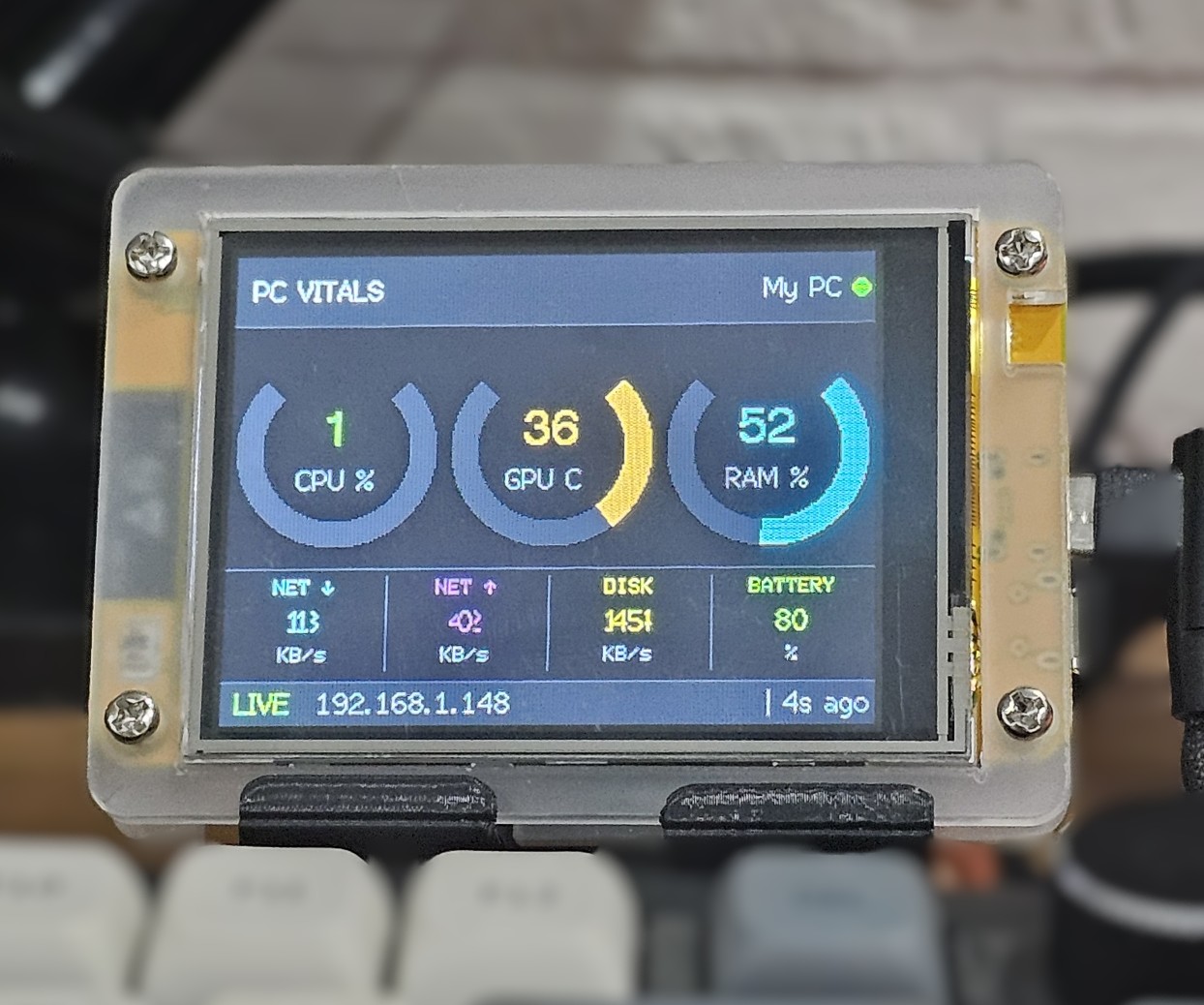
PCVitals displaying live PC stats
Available PC Monitor

PCVitals

Your PC's vitals, always visible. A dedicated Wi-Fi connected display that shows live CPU, GPU temperature, RAM, network, disk, and battery — right on your desk, no alt-tab required.

What is PCVitals?

PCVitals is a compact, always-on display that shows your PC's live performance data without interrupting your workflow. Set it on your desk, connect it to your Wi-Fi, and let it monitor your system continuously — so you always know what your PC is doing without switching windows or opening task managers.

A lightweight companion app runs on your PC and streams system data to the display over your local network. No cloud, no subscriptions — just your stats, live on your desk.

⚠️ Compatibility: PCVitals currently requires Windows and an NVIDIA GPU. AMD and Intel GPU support is not available at this time.

Screen Modes

PC Vitals Screen

The main screen shows all key performance metrics at once — CPU usage, GPU temperature, RAM usage, network download and upload speeds, disk activity, and battery percentage. Colour-coded ring gauges make it instantly readable at a glance.

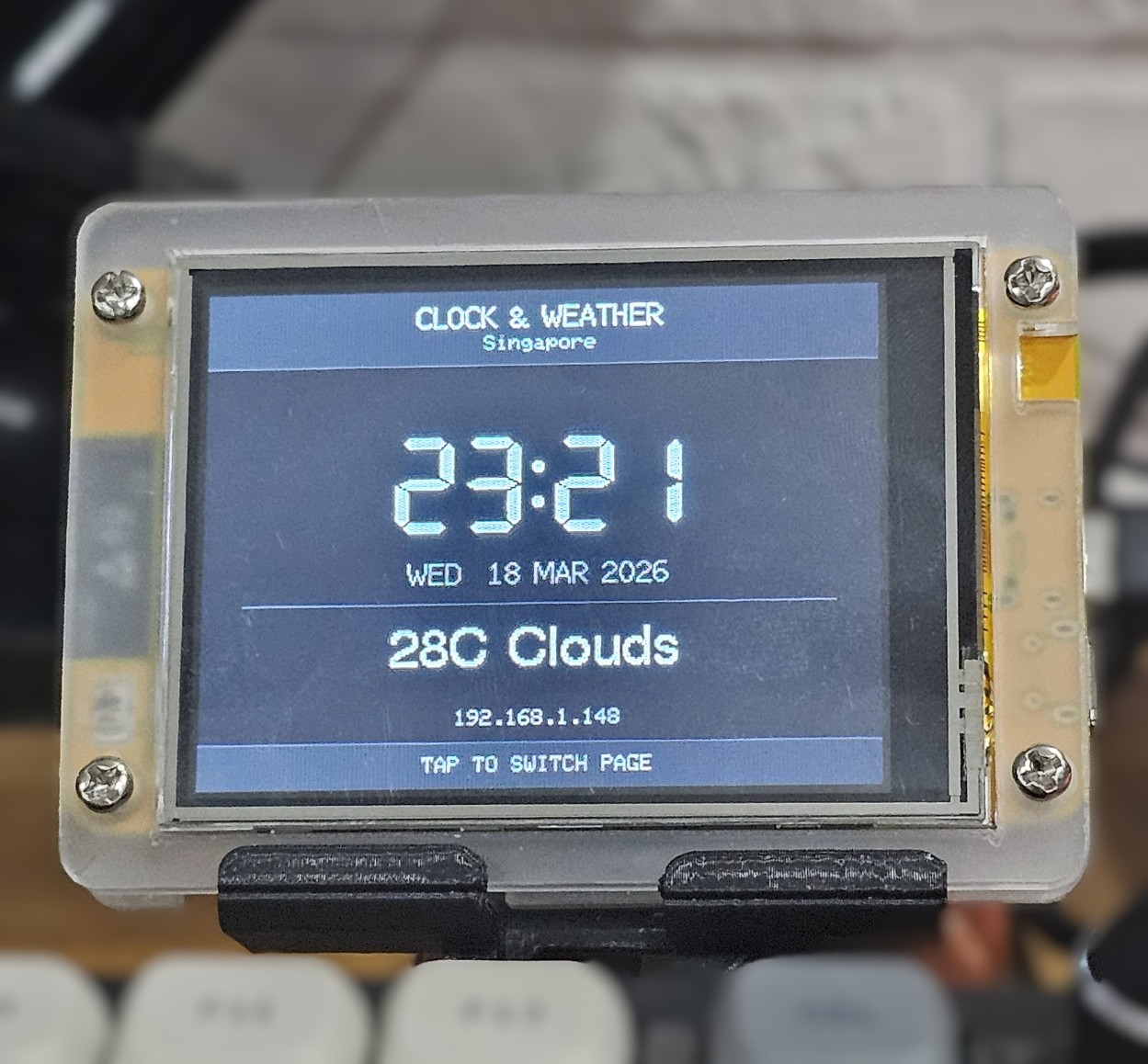
Clock & Weather Screen

Tap the screen to switch to a clean clock and weather view — showing the current time, date, temperature, and conditions. Tap again to switch back to the vitals screen at any time.

All Features

  • Live CPU usage percentage
  • GPU temperature in real time
  • RAM usage percentage
  • Network download and upload speeds (KB/s)
  • Disk activity (KB/s)
  • Battery percentage
  • Clock & weather screen with tap-to-switch
  • Live connection status and last-updated timestamp
  • Wi-Fi connected — no USB data cable required
  • Lightweight PC companion app — minimal system impact
  • Plug-and-play setup via browser-based configuration

Specifications

Display2.8" TFT Color · 240 × 320 px
ConnectivityWi-Fi 2.4 GHz
PowerUSB-C (5 V)
Data sourcePC companion app (local network)
OS supportWindows only
GPU supportNVIDIA only
Screen modesPC Vitals · Clock & Weather
MetricsCPU, GPU temp, RAM, NET, Disk, Battery
TouchscreenYes — tap to switch screens
Dimensions85 × 60 × 15 mm
Weight66 g

What does it display?

PCVitals PC metrics screen PC Vitals
PCVitals clock and weather screen Clock & Weather

Downloads

Download the firmware and companion script to get PCVitals up and running.

📦
PCVitals Firmware v1.0.0 Latest
Released — [Date placeholder]  ·  [Size placeholder]
Download
🐍
PCVitals Companion Script v1.0.0 Latest
Python · Windows · NVIDIA GPU required
Download
How to update firmware: Download the firmware file above, then open the PCVitals configuration page in your browser and go to the Firmware Update section. Select the file and follow the on-screen instructions — PCVitals will apply the update and restart automatically.
How to run the companion script: Ensure Python is installed on your Windows PC, then run pip install -r requirements.txt to install dependencies. Launch the script with python pcvitals.py — it will start sending your PC's stats to PCVitals automatically over your local network. An NVIDIA GPU is required for GPU temperature data.

Frequently Asked Questions

Can't find what you're looking for? Contact us.

How does PCVitals get my PC's data?
A lightweight companion app runs on your Windows PC and streams system metrics to PCVitals over your local Wi-Fi network. No internet connection or cloud service is involved — all data stays on your local network.
Which operating systems does the companion app support?
The PCVitals companion app currently supports Windows only. Additionally, GPU temperature monitoring requires an NVIDIA GPU — AMD and Intel GPUs are not supported at this time.
What metrics does PCVitals show?
PCVitals displays CPU usage (%), GPU temperature (°C), RAM usage (%), network download and upload speeds (KB/s), disk activity (KB/s), and battery percentage — all updated live from the companion app.
How do I switch between screens?
Simply tap the display to switch between the PC Vitals screen and the Clock & Weather screen. Tap again to switch back at any time.
Does the companion app slow down my PC?
No. The companion app is designed to be extremely lightweight. It reads system metrics and sends them to PCVitals at regular intervals with minimal CPU and memory overhead — you won't notice it running.
How do I set up PCVitals for the first time?
On first boot, PCVitals creates its own Wi-Fi access point. Connect to it from your phone or computer, then open the configuration page in a browser. Enter your Wi-Fi credentials and the device will connect to your network. Then install and run the companion app on your PC — PCVitals will find it automatically.
Does PCVitals require an internet connection?
PCVitals connects to your local Wi-Fi network and communicates directly with the companion app on your PC — no internet connection is required for PC metrics. An internet connection is only needed for the Clock & Weather screen to fetch current weather data.